iOS Forensics
I've been wanting to get some hands-on experience with computer forensics and create a habit out of exploring new data acquisition techniques on devices. This is my first experience in doing so on an old iPhone 7 I performed a factory reset on. There are many different ways to acquire data from a seized device, however this guide will focus on the most common way - jailbreaking.
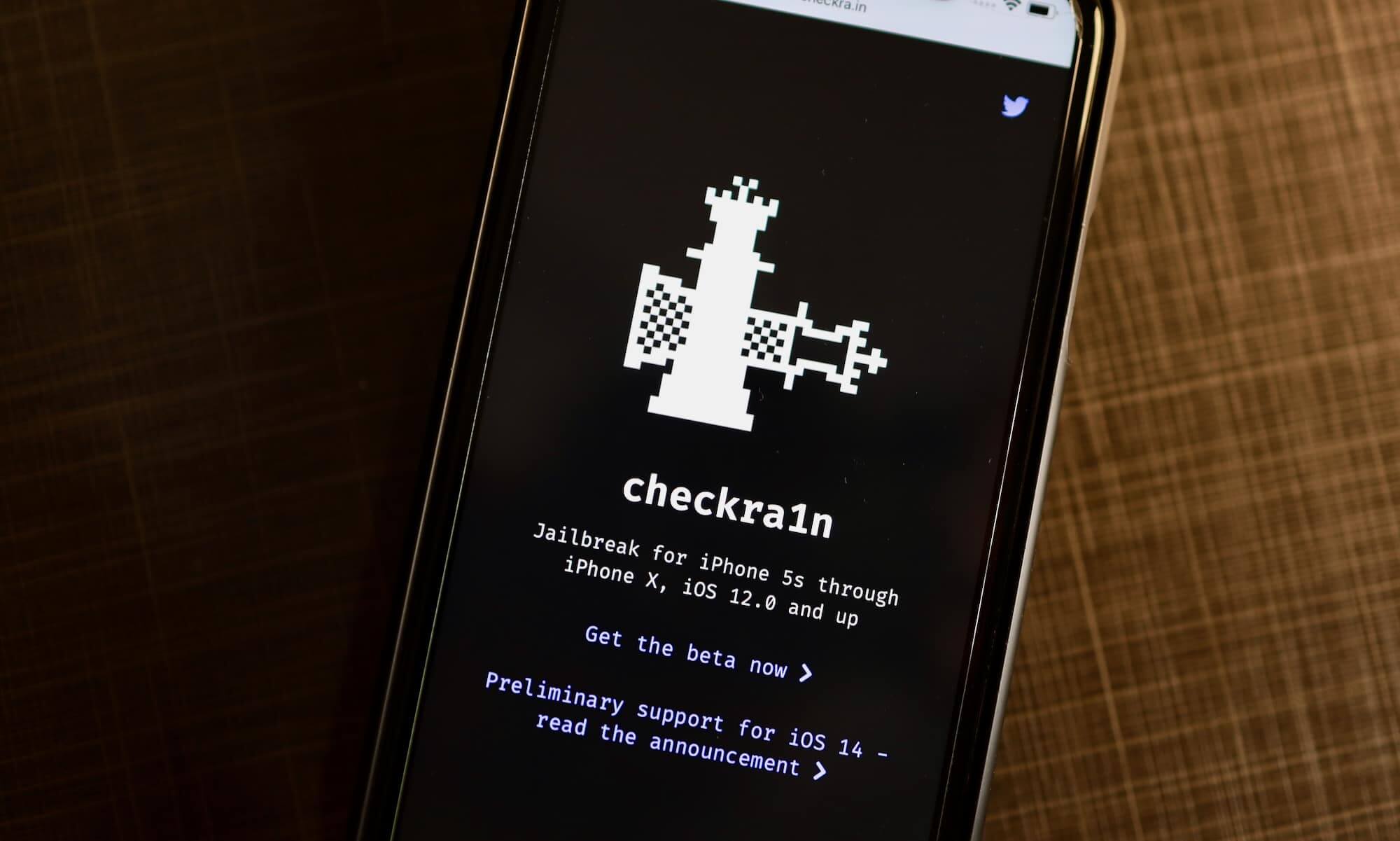
Jailbreaking essentially replaces the firmware partition with a hacked version that allows for the installation of tools not normally available (such as OpenSSH). This walkthrough will be done on a macOS device running Big Sur.
Requirements
Equipment & Software:
- A desktop or laptop to act as our forensics station.
- An old iPhone (X or lower) to act as our seized device.
- A lightning cable.
- The latest version of checkra1n.
- A database browser (such as DB Browser for SQLite).
Definitions
Database
A structured way to organise data. Mobile devices often use SQLite - for example, applications such as Calendar, Text, Notes, Photos and Address Book on iOS.
Plist
A plist (property list) is a data file that stores information on iOS and OSX. A plsit can store strings, dates, boolean values, numbers and binary values.
Notes
- In a real world scenario, it may be wise to turn the iPhone on to airplane mode to prevent a third-party from tampering with any evidence through remote access.
- If a device is passcode protected it’ll be a little more challenging to retrieve the data.
- I’ll be using my own network for this walkthrough, however it’s also possible to set up your own network if you’d like to isolate the device entirely.
Setup
Grab your phone and connect it to your computer with a lightning cable. Open up checkra1n and press Start. This will put the device in DFU mode.

Follow the instructions until you see something similar to the following. Once checkra1n finishes installing you should be greeted with a regular looking lockscreen.

Scroll to the checkra1n application on the device’s lockscreen and install Cydia. Ensure you are connected to the internet.

Once that’s finished, open up Cydia, navigate to Search and install OpenSSH.
Next, we’ll transfer the files of interest from the seized device to our forensics station.
File Transfer
We’ll now need to find the IP address of our device - to do this, navgiate to Settings > Wi-Fi and tap the i icon next to the connected network name. Locate the IP Address field under IPV4 Addresses and take note of it.
Open up a terminal on your forensics station and type the following: scp -r root@<iphoneIP>:/private/var/mobile/ ~/Desktop to copy all files in the private/var/mobile directory on the iPhone. This directory contains many files that will help us build a case. If prompted for a password, the default is alpine.

Building a Case
If you don’t feel like copying the entire /mobile directory feel free to pick and choose what you download from below. Many of these files contain metadata (whether it be in the form of a column in a .db file or timestamp elsewhere) that can help an investigator know when something was created, modified or deleted. This is extremely useful when placing together a timeline of events.
Images
private/var/mobile/Media/DCIM
Images are located within private/var/mobile/media/DCIM. Photos within the 100APPLE directory indiciate that the photo was taken on the device itself - sequential numbering is used to show the order in which the photos were taken, e.g. IMG_0001 would be the first photo a device took. If there is a number missing in the sequence of photo files, one can assume that the photo was deleted.

We can even view the longitutde and latitude of where the photo was taken through looking at the metadata with ExifTool. For example: exiftool IMG_0002.HEIC | grep GPS.

Deleted Images
private/var/mobile/Media/PhotoData/Thumbnails
It’s easy to recover deleted photos off a device through using tools such as iThmb Converter. Simply copy all ithmb files and convert them from the above directory.
Texts
/private/var/mobile/Library/SMS
Text messages are located within sms.db - this houses both existing and deleted conversations. The tables ‘message’ and ‘attatchments’ will contain the most interesting information. The ‘message’ table contains a row for each message - each row contains the following information:
- Recieving phone number.
- Message body.
- Date sent.
- ‘flags’ which tell if the message was sent (3) or recieved (2).
- ‘read’ which tells if the message was read (1).
Here we can see a message from our seized device to another with the message: 2am @ Bob's. b there.

If we check the ‘attatchments’ table we can see that the person also included IMG_0002.HEIC with the text (which we found within private/var/mobile/media/DCIM/100APPLE earlier):

Deleted messages can be found in the ‘deleted_messages’ table.
Personal Contacts
/private/var/mobile/Library/AddressBook
A device’s contacts can be found within AddressBook.sqlitedb. The ‘ABPerson’ table contains the person’s first and last name, birthday, job, title, nickname ect. The ‘ABMultiValue’ contains the column ‘value’ which has the e-mail and/or phone number of the individual in ‘ABPerson’. In the below example, we can see that our siezed device has three contacts:

Browsing Activity
/private/var/mobile/Library/Caches/Safari
Browsing activity is located within History.db. Here we can see the user of our seized device looked up how to hide a dead body:

Downloaded Applications
private/var/mobile/Applications
When an application is downloaded, a new directory is created within the mobile/Application folder. Application specific usernames, passwords, cookies and images can be found here.
Keystrokes
private/var/mobile/Library/Keyboard
A list of all words typed by the user throughout the lifetime of a device can be found in dynamic-text.dat. Any words entered into applications such as Notes, Safari, Facebook ect. will be stored here. UserDictionary.sqlite contains a user’s manual autocorrections.
Passwords
/private/var/Keychains
Many iOS applications use Apple’s keychain for password management. The key-chain-2.db file contains various tables such as cert, genp, inet and keys that may have account names and passwords a device has used.
Voicemail, wireless access point and device login passwords can be found within this database. In most cases, the passwords will be encrypted by the iOS encryption keychain procedure.
Notes
/private/var/mobile/Library/Notes
Data from the default Notes application can be found within notes.sqlite - the table ‘ZNote’ contains multiple columns that may be of interest:
- CREATIONDATE
- MODIFICATIONDATE
- ZTITLE
The ‘ZNOTEBODY’ table contains the contents of the note in the ‘ZCONTENT’ column.
Call History
/private/var/Library/CallHistory
The call history of an iOS device is located within call_history.db. The ‘call’ table contains the phone number, date and duration of the call. The ‘flags’ column in this table indicates whether it was an incoming (4) or outgoing (5) call.
Geographical Location
/private/var/Library/Caches/locationd
Applications such as Camera often store the longitude and latitude of where a photo was taken. The consolidated.db file contains geolocation data for every cell tower the iOS device has ever utilised. Tools such as iPhone Tracker pull the aforementioned file and provide a graphical display of where the iOS device has been.
Tools
There are a variety of tools, that all use different methods that can be used in a forensics investigation on a seized iOS device:
Scalpel
Paraben Device Seizure
EnCase\
What did I learn?
1) How to jailbreak an iOS device to acquire evidence.
2) Relevant files that can help build a case on an iOS device.
3) There’s a crazy amount of information someone can extract from a portable device.